Updated
Sep 03, 2026
Updated
Sep 03, 2026
 6 min read
 Checked regularly
What You Need Before You Start
Install Google Authenticator on your phone first: App Store or Google Play, publisher Google LLC, free. MEXC offers a choice of two apps, its own MEXC Authenticator or Google's; Google is the practical pick if you use more than one exchange, since one app then holds all your codes side by side. Besides the app you need access to your MEXC account and paper for the backup key. Paper, not a screenshot: a screenshot lives in the same cloud an attacker may reach.
How to Enable Google Authenticator on MEXC
- Log in to MEXC, click the profile icon and open "Security".
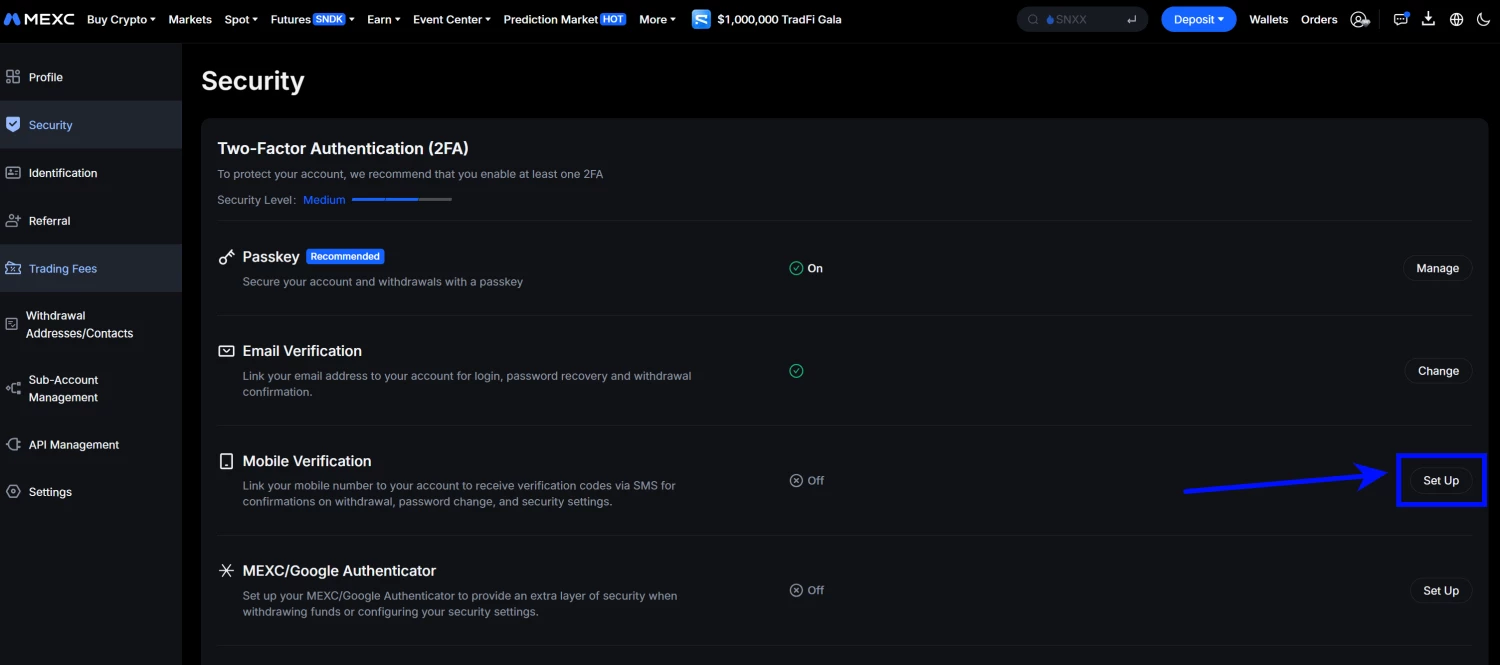
- Find "MEXC/Google Authenticator" in the "Two-Factor Authentication (2FA)" section and click "Set Up".
- The setup wizard opens with three steps. The first one offers to download the app; you already have it, click "Next".
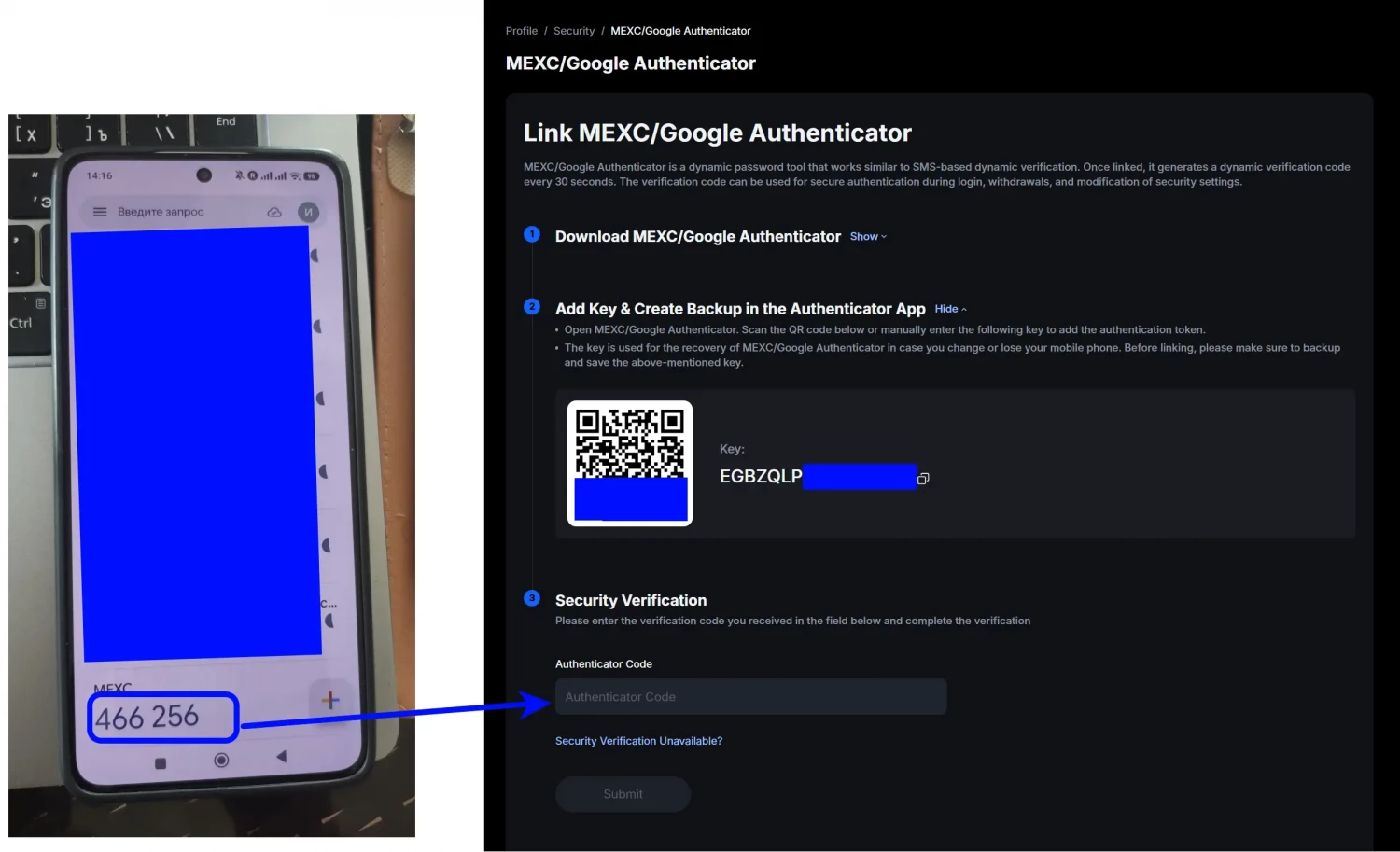
- Step two shows a QR code and the Key next to it. Write the key down on paper before anything else: it is the recovery key that restores your authenticator if you change or lose your phone.
- Open Google Authenticator, tap "+" and either "Scan a QR code" or "Enter a setup key". A MEXC entry with a six-digit code appears.
- Type the current code into the "Authenticator Code" field of step three and click "Submit" before the 30-second timer rolls the code over. If it rolls, just enter the fresh one.
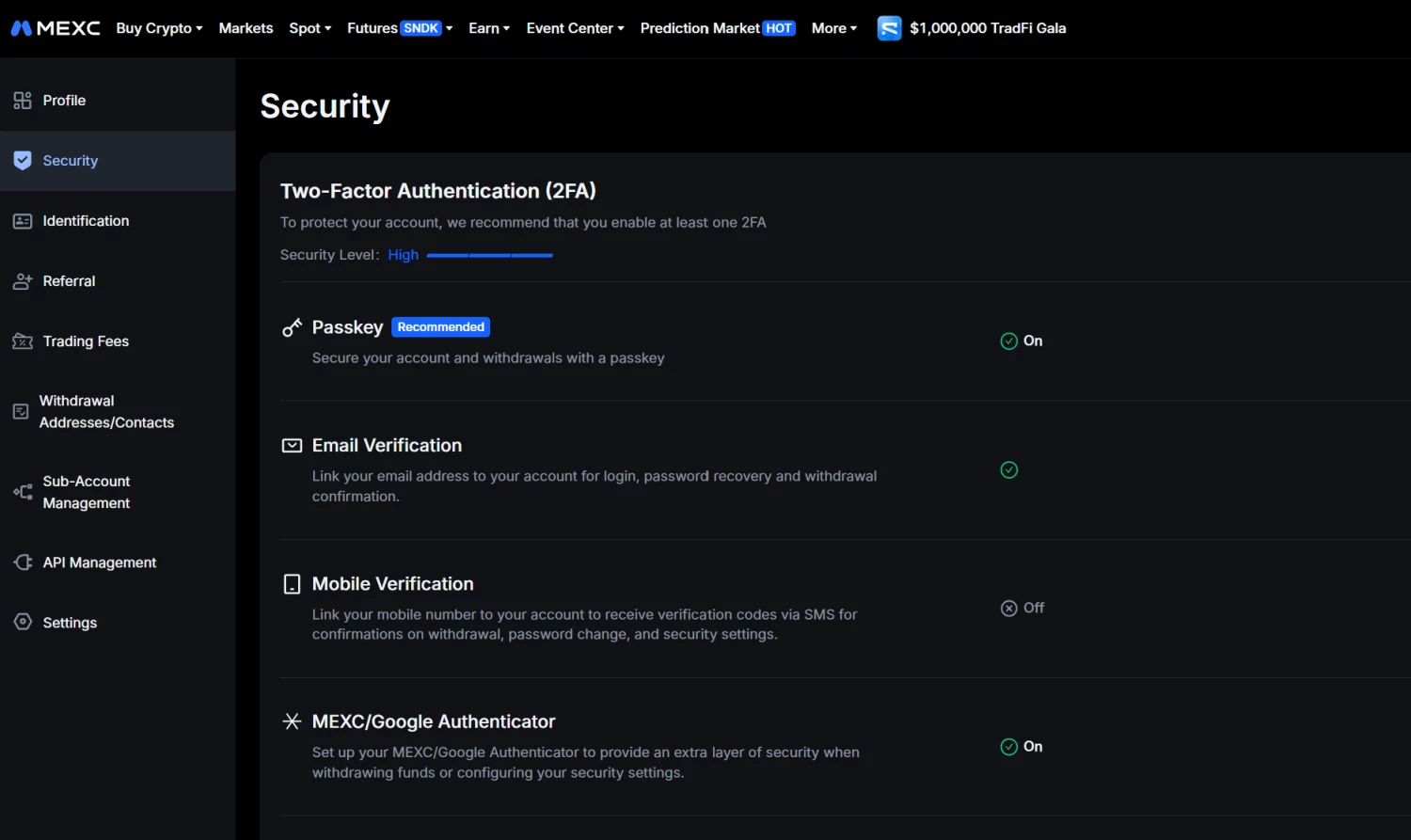
Back in "Security", the "MEXC/Google Authenticator" line shows "On" and the Security Level bar reads "High". That pair is the current standard: passkey for everyday logins, the authenticator guarding withdrawals.
Setting up from the MEXC mobile app works the same way with one catch: the QR code is on the same phone that needs to scan it. Use "Enter a setup key" instead of scanning.
How Google Authenticator Works
The app and MEXC share that secret key and both run the same math on the current time; every 30 seconds the result changes, and the result is your code. No internet involved, which is why it works offline and in roaming, and why the single most common failure is a drifted phone clock: wrong time, wrong codes. The fix is automatic date and time in the phone settings plus "Time correction for codes" → "Sync now" in the app on Android. One caveat of the modern app: entries can sync through your Google Account, and then your MEXC codes are exactly as safe as that Google Account. Give it its own strong 2FA, or the lock ends up weaker than the door.
How to Disable Google Authenticator on MEXC
- Open "Security" and click "Remove" next to "MEXC/Google Authenticator".
- MEXC opens a confirmation page: withdrawals and fiat withdrawals will be disabled for 24 hours after removal, and dropping to a single verification method raises the account's risk. Tick both boxes.
- Click "Unlink Anyway" and confirm with an authenticator code or your passkey.
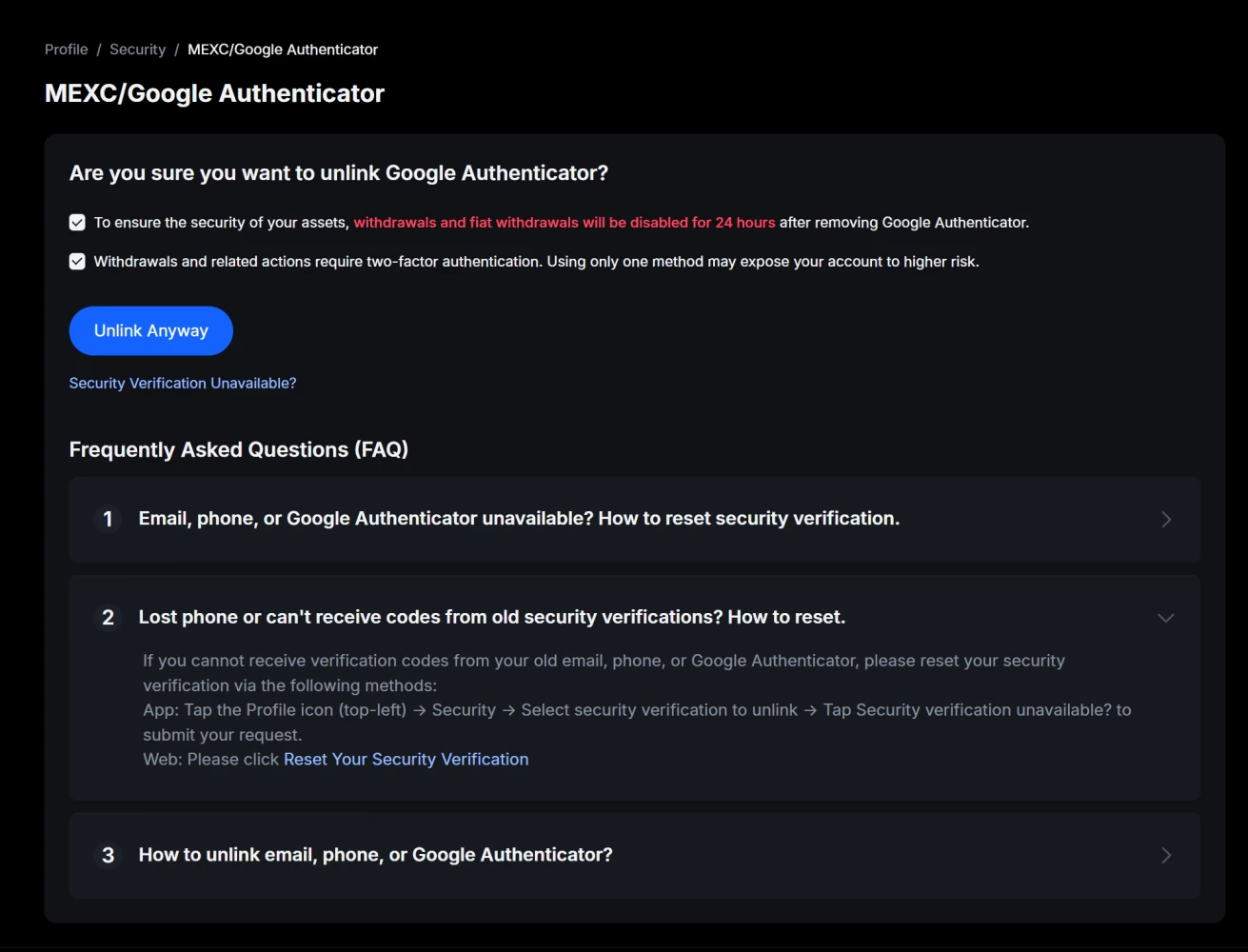
Three things to know before you do it. If anyone asked you to disable 2FA — support, a "safe account" manager, an investment advisor — stop: that request is the scam itself, no legitimate service needs your protection off. The 24-hour hold is not a bug but the point: it is the window in which you would notice an attacker stripping your protection. And MEXC will not let the account stand naked anyway: it must stay linked to at least an email or a phone number. When switching phones, the right order is: restore the entry from the backup key on the new device, test a login, then wipe the old one.
With the backup key: minutes. Install Google Authenticator on any device, tap "+" → "Enter a setup key", name it MEXC, type the key, the codes are back.
Without the key: MEXC's reset flow. In the app: profile icon → "Security" → select the verification to unlink → tap "Security verification unavailable?" and submit the request; on the web the same lives behind "Reset Your Security Verification". The request goes to review, the account survives, but you trade minutes for days, and that difference is the backup key on paper.